
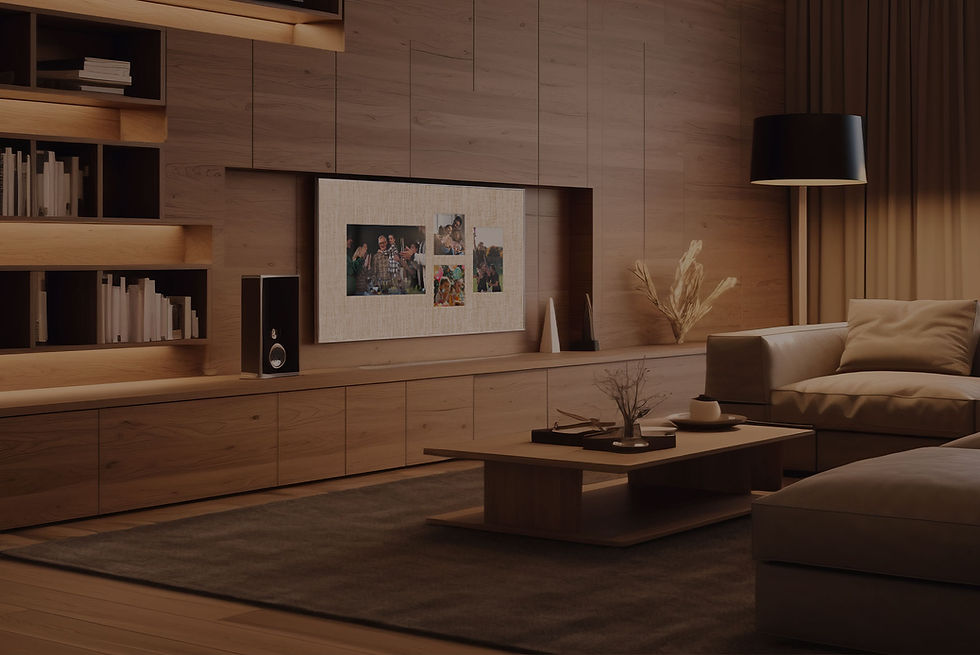
Create Beautiful Photo Collages and Share Them on Any TV
Turn your favorite memories into personalized TV displays with Liquid Canvas.
Create custom collages, organize them into playlists, and share them with family and friends in just a few simple steps.
Create Your Collage


How to Create and Share a Photo Collage

1. Create Your Collage
Choose a template, select your photos, and create a personalized layout.

2. Save and Upload
Upload your collage and organize it into playlists.

3. Display on Any TV
Assign your playlist to your TV or share it with family and friends.

4. Connect Family TVs
Invite loved ones to connect their TVs and enjoy shared memories together.
Watch the Full Tutorial
Follow this simple step-by-step tutorial to learn how to create custom photo collages, upload them to playlists, and display them on connected TVs using Liquid Canvas.
Perfect for sharing family moments, vacation memories, special events, and personalized home displays.
Step-by-Step Guide to Creating and Sharing a Photo Collage

Step 1
Open the Liquid Canvas App
Launch the Liquid Canvas app on your device.

Step 2
Go to My Content
Open the My Content section from the main menu.
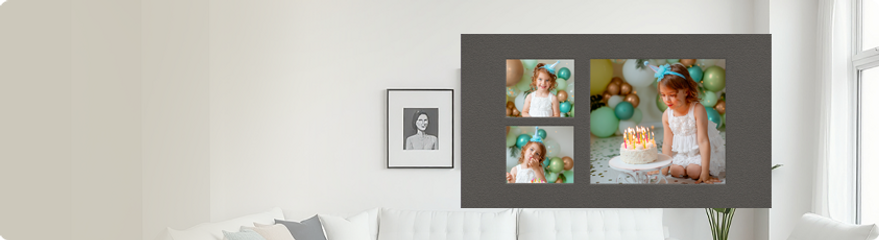
Step 3
Create Your Collage
Tap Create Collage, choose a template, select a mat background, and pick the photos you want to use.

Step 4
Save and Upload Your Collage
Tap Create, then upload your collage to display it on a TV. Name your collage and save it to your account.

Step 5
Add Your Collage to a Playlist
Add your collage to an existing playlist or create a new playlist for your favorite memories.

Step 6
Display Your Playlist on Any TV
Open the Playlist Menu, select your playlist, and assign it to any connected TV — whether it’s your own or a family member’s.

Share Your TV With Family and Friends
Invite Someone to Connect Their TV
Open the My TVs menu, tap Add TV, and select Invite to Connect TV.

Send the Invitation
Enter your friend or family member’s name and phone number, then share the invitation directly from the app.

Once connected, you can easily share playlists, collages, and memories across multiple TVs.

Share Memories Beyond Your Home
Share Your First Collage Today


Create personalized collages, organize beautiful playlists, and share them with the people you care about using Liquid Canvas